
A Critical Moment
When a WordPress critical error downs your website, it’s an, “&^%*” moment for sure – especially if you are maintaining a client site. Suddenly you’re staring at a white screen wondering what broke this time. In my experience, it’s usually a plugin or theme update that went sideways. Not always. But often enough that it’s the first place I look.
The real difference between chaos and control in that moment comes down to one thing: access.
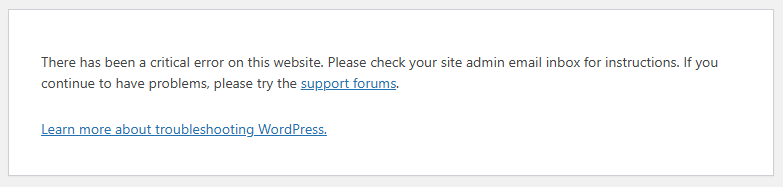
Why Access Changes Everything
When the dashboard is down, you need another way in. I host my sites on a DreamHost VPS, Wherever I host, I need full access to the server, files, and database. This matters when WordPress itself is unavailable. Things like sFTP credentials, the hosting control panel, and database access stop being “nice to have” and become essential.
Sometimes the fix is quick:
-
Temporarily disabling a plugin folder
-
Rolling back a theme
-
Putting up a maintenance page while you investigate
Sometimes it takes longer. Either way, access buys you time—and credibility.
What You Should Have Before Something Breaks
If you manage WordPress sites (especially for clients), make sure you have:
-
Administrative access to WordPress
-
Admin email notifications enabled
(WordPress sends details about critical errors — but only if the emails are set up correctly.) -
FTP or sFTP credentials
-
Hosting control panel and/or phpMyAdmin access
And one thing people rarely prepare:
-
A simple HTML maintenance or “offline” page, ready to upload
The Maintenance Page Move (Highly Underrated)
When a site goes down, the last thing you want is a broken page broadcasting trouble. That way visitors — and clients — see a calm “Be back shortly” message instead of a technical meltdown.
If WordPress fails, I’ll often:
-
Rename
index.php -
Upload a basic
index.htmlmaintenance page
Mine usually includes:
-
Logo
-
Short, neutral message
-
General contact info, like an email address.
It buys breathing room while you work.
The Takeaway
You can’t prevent every WordPress issue, but you can control how prepared you are when one happens. And if you aren’t familiar with the technical aspects of administering a WordPress site, if server access feels intimidating, that’s not a personal failure—it’s a sign. Find someone who can handle that side of things before you’re under pressure. WordPress will absolutely have you questioning your life choices if you let it.